
The Google Discover page is just a swipe away from the home screen on millions of Android phones, including the Google Pixel and Samsung Galaxy. But many users aren’t necessarily aware of its existence or how they can get the most out of it.
As the name suggests, the purpose of the page is to help you discover information that interests you. This could be for example news, sports scores or weather forecasts, and over time the page should better understand what you want.
If you’ve never looked closely at the Google Discover page or don’t feel like you really understand how it works, read on. This isn’t something you’ll find built into iPhones, although you can find a similar page in the Google app for iOS.
Access to the Google Discover page
To access the Discover page on an Android phone, simply swipe from left to right on the home screen. If you have multiple home screens in-game, you need to keep swiping until you get to the leftmost one. The next tap should then open Google Discover for you.
You might find slight variations depending on the type of Android phone you have. For example, Google Discover is enabled by default on Galaxy phones, but can be replaced with a Samsung News screen. To get Google Discover, open Samsung News, then tap the three dots (top right): Choose Add a media page to the home screenand you can choose between Google Discover And Samsung News.
At first, if you’ve just started using the Google Discover feature, the news you see might not be very relevant to you. They will be based on a variety of factors and information that Google has access to, which may include your Chrome browsing history and past Google searches. So these stories should be at least somewhat related to what you’ve already searched for online.
You can tap any story to read it in the built-in Google Discover browser: use the down arrow and cross icons (top left) to minimize or close the browser if necessary, then return to Discover. There are also buttons below each story to like the story and share it with others (you can choose a specific contact or app, or get a link to share).
Keep scrolling Discover page to get more and more stories. At the top, you get news widgets that feature sports scores, weather forecasts, stock prices, sunrise and sunset times, currently playing media, and other content that Google thinks might be of interest to you. At the very top you can press Google to launch a web or AI search.
Customizing the Google Discover page
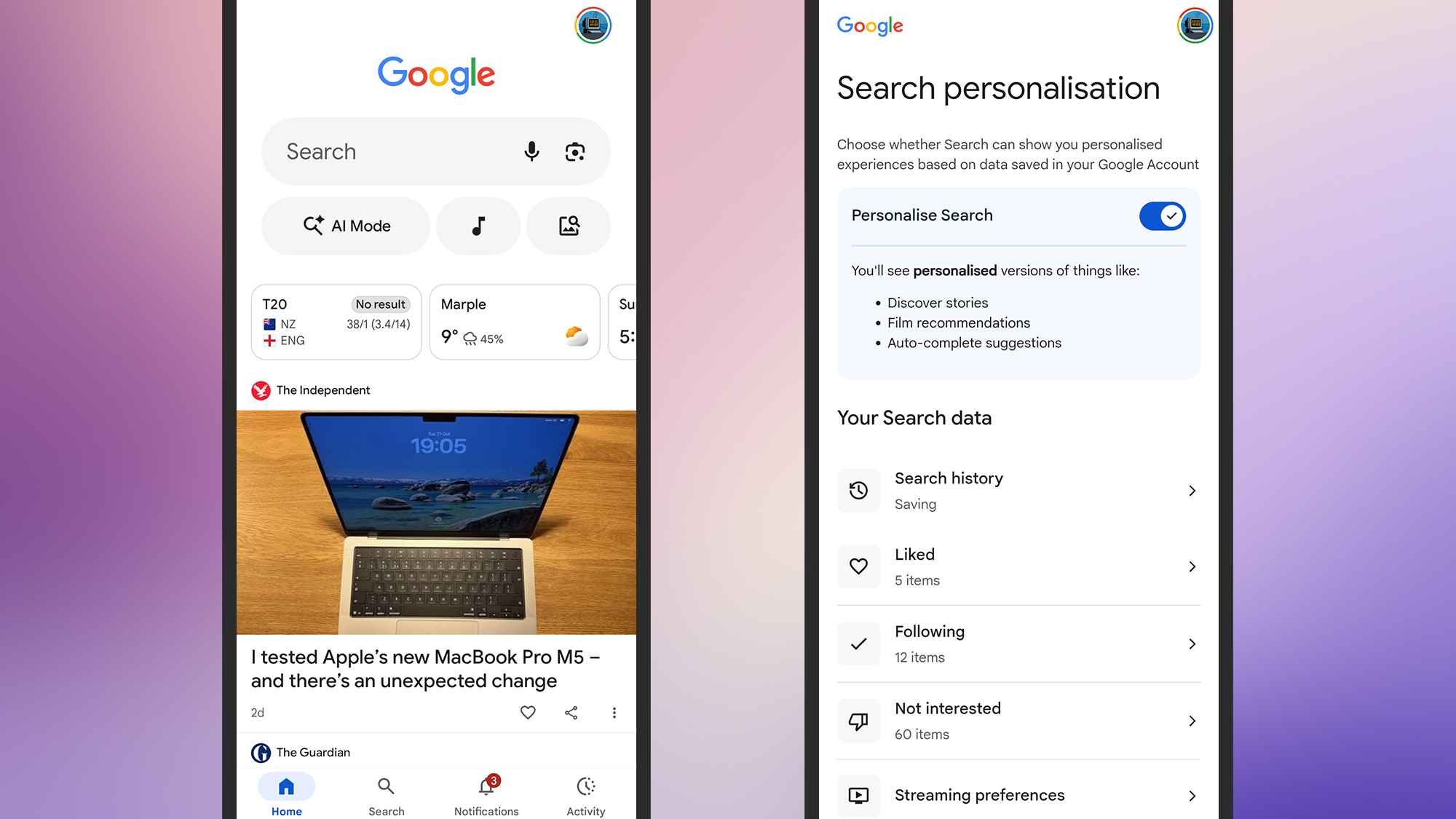
Now that you know where to find the Google Discover page and how to bypass it, you need to start customizing it. To some extent, this should happen automatically, as Google learns more about you from your browsing history (if it’s in Chrome on desktop or mobile) and from your Google searches.
If you tap the three dots next to a story in your Discover feed, you’ll discover several options you can use to fine-tune the type of news you see: You can choose to See less content like thisor tell Google you are Not interested in a topic. It is also possible to block a particular website from Discover via this context menu.
In the other direction, you can express your approval for a story choice by tapping the heart icon below it. You also have the possibility to To safeguard a story to view later (tap the three dots to find it). To find the stories you’ve saved, tap your Google account photo (top right), then Backups and collections.
You can customize the Discover feed in several other ways: tap the image of your Google account (top right), then Search customizationand you can edit the stories you liked, the topics you follow (like “soccer” and “technology” for example) and the list of things you don’t care about. So if you were never interested in content about cats before, but now you like it, you can edit it here. You can also edit your Google search history.
There’s also a way to set your favorite stories in Google Discover and Google Search: you need to run a standard Google search from Discover on a trending topic, then click the icon next to the right of the Top Stories box. From there you can add your favorite sources. So you might want to include Popular Science, for example.

House of the Future Prize 2025


