
I’m sure this sounds familiar: you’re trying to install the latest version of iOS, upgrade to a new iPhone, take photos or record videos, or just download that awesome app everyone’s talking about, and your iPhone says storage is full.
You’ve already deleted all the apps you don’t think you need, and there are always not enough space on your iPhone. So you open Settings, tap GeneralSO iPhone Storageand of course, your iPhone is full. Worst of all, a huge some of it is simply listed as Other (renamed System Data in iOS 15). What does that mean? How to get rid of it? The System Data/Other Storage sections are mysterious and confusing, and there is no single answer that works for everyone, but I hope this guide helps you solve this problem.
Latest iPhone version: iPhone 16e (March 2025), iPhone 17, iPhone Air, iPhone 17 Pro and 17 Pro Max (September 2025)
Latest iOS version: iOS 26.2 (December 2025)
Latest iOS beta: N / A
How to view your iPhone storage
To see how much storage all your apps and data are taking up on your iPhone storage, open the Settings app, select GeneralSO iPhone Storage. At the top, you’ll see a bar graph showing your iPhone’s total storage and the types of data filling it. Below you’ll find a list of apps on your phone and the space they take up, both for the app itself and its stored data.
It may take several seconds for the chart to appear on your iPhone because it takes time to scan and analyze its storage. Even after the graph first appears, you will have to wait several more seconds for it to stabilize, as the app list and storage sizes may change while your phone finishes scanning.
You’ll find your iPhone’s storage details a few levels deep in the Settings app.
What is system (or other) data on iPhone?
Your iPhone’s storage menu will divide this top bar into familiar categories like Apps, Media, Photos, and Mail, but also into System Data (iOS 15 and later) or Other category which is sometimes very big. It’s common for system data to be between 5GB and 20GB, but if it’s well over 20GB, it’s probably gotten out of control. You can scroll to the bottom of the apps list where you will see iOS, which are the system required files and are usually around 10 GB, and System Data, which are files other than apps and downloads collected by iOS. Press System data to see how much space it takes up.
The System Data/Other category is large and varied because it is a true catch-all category. It includes system caches, logs, Siri voices (if you have downloaded more than one), updates and much more. One of the main culprits for the uncontrollable growth of system/other data is the streaming of a lot of music and videos. When you download video or music from the iTunes Store, TV app, or Music app, it is indexed as Media. But flow Caches are used to ensure smooth reading, and these are classified as System Data/Other.
Safari’s caches can also start to get quite large. And if you send tons of texts containing images or videos, the corresponding caches can start to fill up a lot of space. Your iPhone is supposed to manage these caches to prevent your storage from being completely full, but it doesn’t always do a great job.

Deleting your Safari data may reduce the size of Other.
We explain how to delete other storage on a Mac and how to delete system data on a Mac in separate articles.
How to Reduce System/Other Data Size on an iPhone
You can’t get rid of system/other data completely, but you can sometimes reduce its size.
Let’s start by trying to clear your Safari caches. Open Settings > Safari and choose Clear History and Website Data. If you have a plot Safari tabs open on your iPhone, you may also want to close most of them.
You may also want to edit messages to save fewer old messages. Open Settings, then Messagesand scroll to Message history setting. By default, Keep messages is set to Foreverbut you may want to change it to 1 year or even 30 days to reduce data cached by the Messages app. Please note, this will result in the deletion of old messages. Therefore, if you have messages that you want to keep, find a way to back them up.

If you send a lot of text messages, your Messages app may be filling up your storage space with plot of data.
Finally, go back to iPhone storage and check the apps list. Most applications store data classified as Applicationsbut some will keep caches classified as System Data/Other. If, for example, the Podcasts app takes up a few gigabytes of space, it’s probably mostly cached data. Deleting the app and downloading it again might harm the System Data/Others category.
How to free up space occupied by iOS
Although Apple lets you delete stock iOS apps that you don’t want to free up space for, the system still takes up a lot of space, in some cases 25 GB or more. However, if you’re using an iPhone 15 Pro or later and have Apple Intelligence enabled, that takes up over 10GB of space. Simply disabling it will help you get it back. Meet at Apple Intelligence and Siri in Settings and enable the toggle. Free space will not immediately appear in the storage, but the system will be able to use this space to install updates and applications. And you can always reactivate it later.
The Nuclear Option: Back Up and Reset Your iPhone
You can go through your iPhone trying to delete every little cache that might increase the size of system data/other storage, but if you really want to make it as small as possible, you need to back up your phone and reset it. This may take a little time. The best way to do this is to use your Mac or PC.
On a Mac running macOS 10.15 Catalina or later:
- First, connect your iPhone to your Mac with the included USB-C to Lightning cable.
- When prompted on your iPhone, tap “Trust” and enter your password.
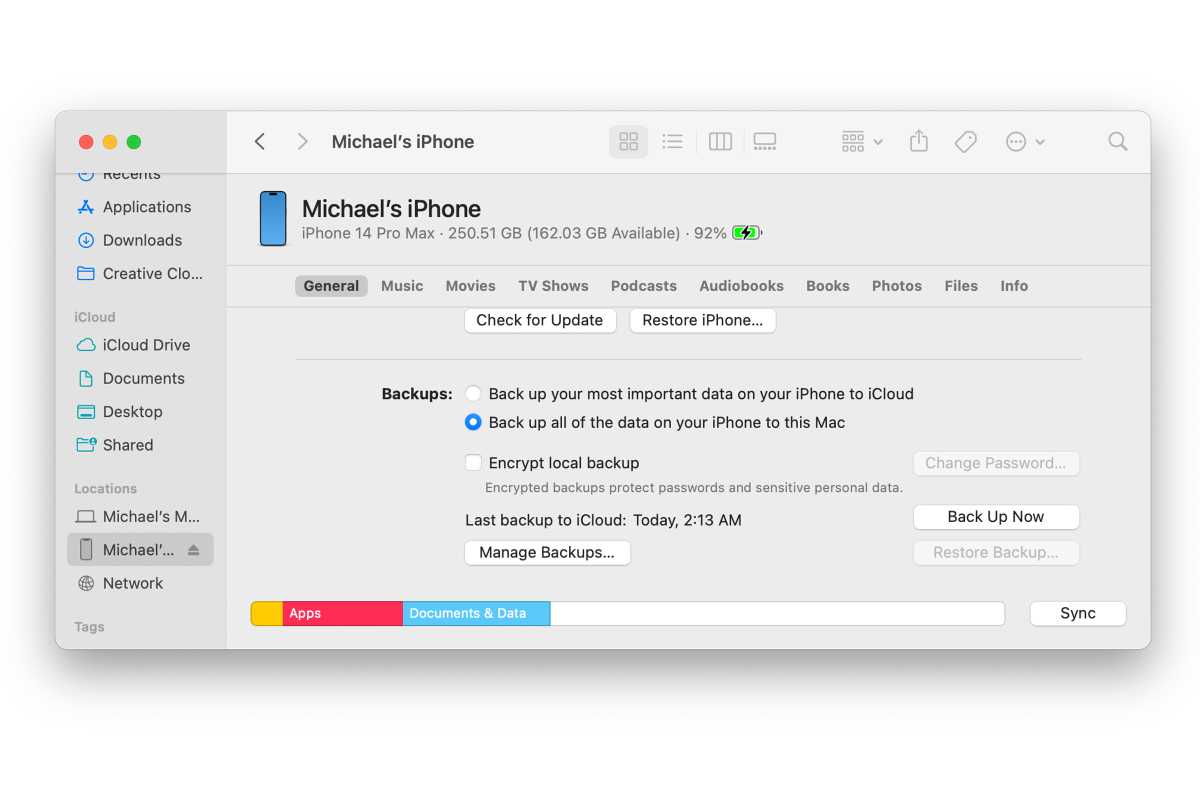
- In the Finder sidebar on your Mac, select your iPhone under Locations.
- Click on the General tongue.
- Select “Back up all your iPhone data to this Mac.”
- To encrypt your backup data and protect it with a password, check the “Encrypt local backup” box.
- Click Back up now.
- Note: You can also connect your iPhone to your computer wirelessly if you set up syncing over Wi-Fi.
Foundry
On a Mac running macOS 10.14 Mojave or earlier, or a PC
On a PC or Mac with macOS 10.14 or earlier, you can use iTunes to back up your phone. After connecting your iPhone to your Mac or PC, select your iPhone by clicking the small phone icon at the top left, and under Backups, choose “This computer” and check the “Encrypt local backup” box to protect your backup with a password. Then click on the button to Back up now.
Reset and Restore
Once the backup is complete, disconnect your iPhone, go to Settings > General > Resetand select Erase all content and settings. This will return your iPhone to its factory settings, just like when you took it out of the box. When it restarts and is in the initial setup process, reconnect it to your computer with iTunes open and follow the on-screen instructions to restore your device.
This is the longest and most complex way to reduce the size of system data/other storage, but it is also the best. There is simply no way to make it smaller than it will be after another reset and restore.


